
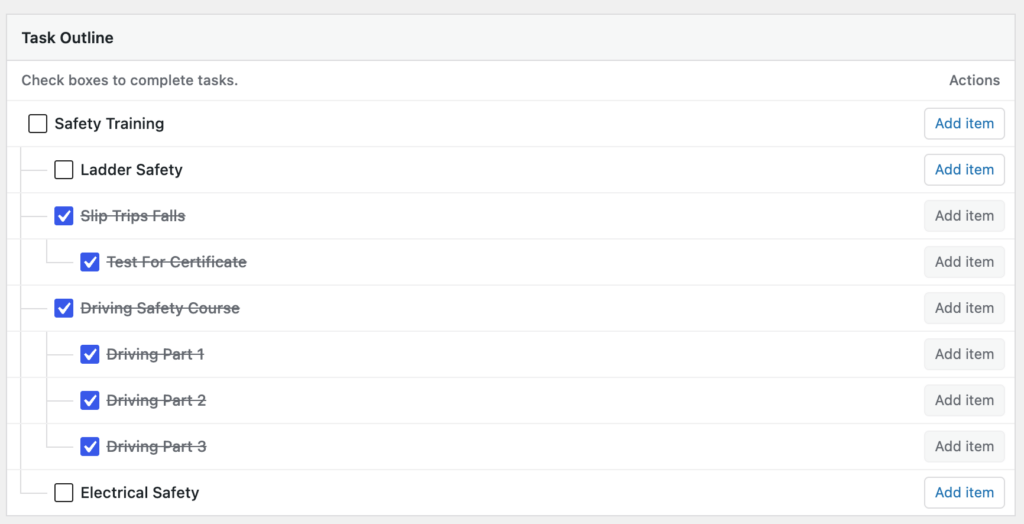
List View gives you a compact outline of tasks and subtasks in OrbitalWP. It is useful when you want to review task hierarchy, open task details, and update completion without using the board, timeline, or calendar layout.
How This Fits In OrbitalWP
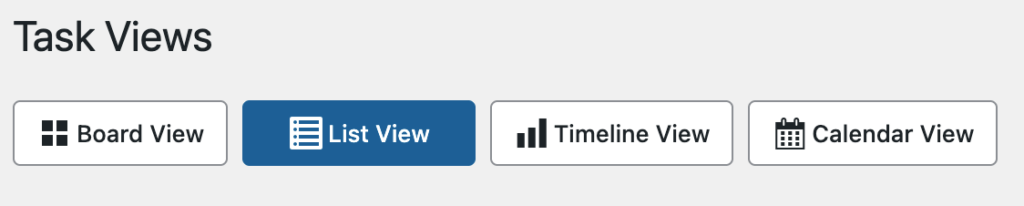
List View is a view options on the Kanban & Timeline screen. The screen heading is Task Views, and the view buttons are Board View, List View, Timeline View, and Calendar View.
List View focuses on a Task Outline. Each row is intentionally simple: a completion checkbox, the task title, and, when available, an Add item action.
Where To Find It
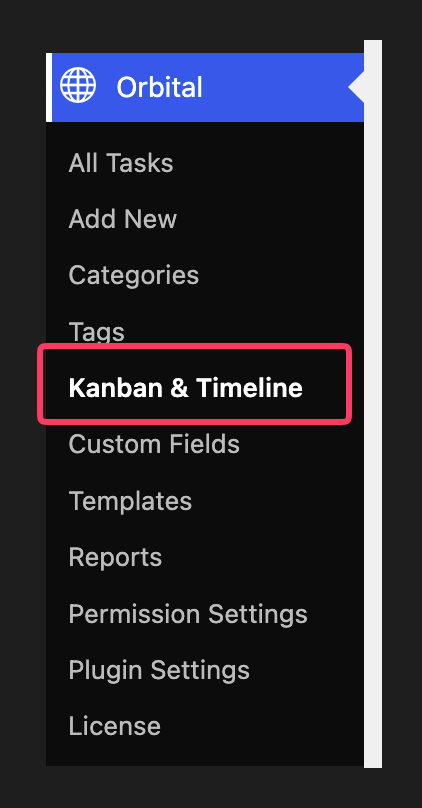
In the WordPress admin, hover or click on the Orbital menu item, then choose Kanban & Timeline. On the Task Views screen, select List View.
Before You Start
- You need access to the Kanban & Timeline screen.
- The tasks you see are limited by your OrbitalWP task access, task-specific access, and assignments.
- You may be able to see a task without being able to complete it or add items under it.
- Some filters appear only when there are matching options available.
What You Can Do
- Review parent tasks and subtasks in the Task Outline.
- Select a task title or row to open task details.
- Use the checkbox to mark a task complete or incomplete when you have access.
- Use Add item to create an item under an eligible task.
- Click the task title to see more metadata in the offcanvas drawer.
- Use shared filters and closed-task preferences to change what appears.
Basic Workflow
- Open Orbital, then choose Kanban & Timeline.
- Select List View.
- Review the Task Outline.
- Use Preferences or filters if you need to narrow the list.
- Select a task to open its details, or use the checkbox if you need to update completion.
- Use Add item when you need to add a child item under a task.
Important Controls And Settings
- Preferences includes My Tasks and Closed Tasks options.
- Closed Tasks options include Show All Tasks, Hide Closed Tasks, and Show Only Closed Tasks.
- Available filters can include Categories, Tags, Assignees, Related Posts, and Parent Tasks.
- The Assignees filter includes Assigned Tasks when that filter is available to you.
- Clear removes active filters when the shared filter controls show it.
Board-only controls such as Group tasks by and Hide Uncategorized Lane are not List View controls.
What Affects What You See
- Your permissions and assignments affect whether you can open the screen and which tasks appear.
- Task-specific access can make one task visible without giving broad access to all tasks.
- Assignee access can allow task visibility and completion changes without broad edit access.
- Closed-task preferences can hide closed tasks or show only closed tasks.
- Active filters change the outline, and parent tasks may appear as context when a matching subtask is visible.
- Completed or closed tasks can prevent Add item from being available.
Deeper Notes
List View uses the same task access rules as the other task views, but it presents the result as an outline. A task can appear because it matches your access directly, because it is assigned to you, or because it helps show the parent-child context for a visible item.
Filters can include tasks that match any active filter type. If the results look broader than expected, check which filter groups are active and use Clear before testing one filter at a time.
When you complete or uncomplete a task, OrbitalWP may show an additional choice if subtasks or approval-related behavior are involved.
Common Problems
I cannot find List View. Open Orbital, choose Kanban & Timeline, then select List View on the Task Views screen. If Kanban & Timeline is missing, ask an administrator to check your task access.
The view is empty. If the screen says No tasks match the current filters., use Clear if it appears, then check Preferences and the Closed Tasks setting.
A task is missing. The task may be hidden by permissions, assignments, filters, or closed-task preferences. Ask an administrator to confirm that you have access to that specific task.
The Assignees filter is missing. The Assignees filter is not shown to every user. It appears only when your access allows that filter and there are available assignee options.
The checkbox is disabled. You may have permission to view the task but not change completion. Approval locks can also block completion changes.
Add item is missing or disabled. You may not have permission to create items under that task. Add item can also be unavailable when the parent task is closed, complete, or under a completed parent.
The list failed to load. Refresh the page. If the message keeps appearing, ask an administrator to check whether board data is loading correctly for the Kanban & Timeline screen.